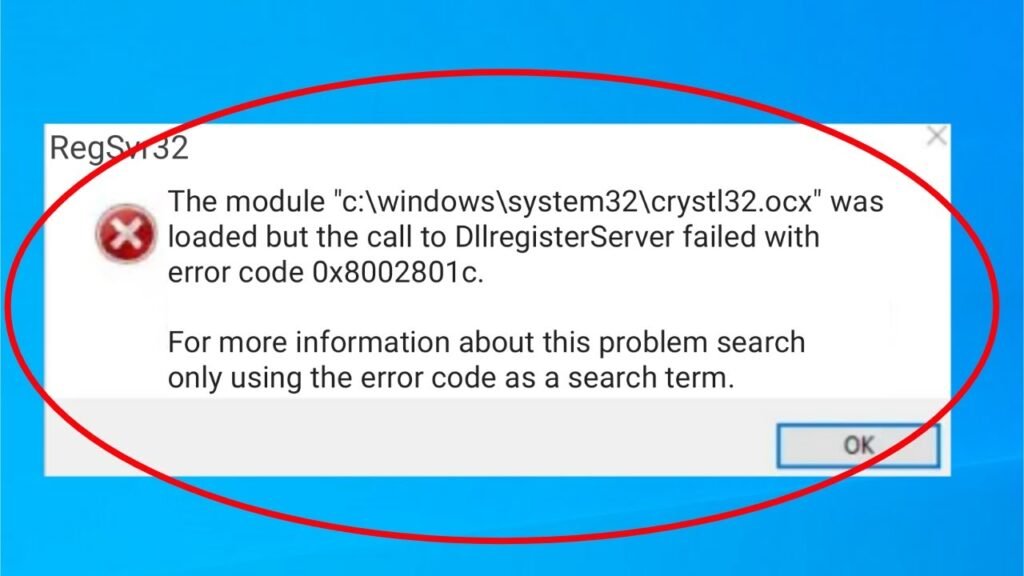

Encountering the “The module failed to register / DLLRegisterServer failed” error typically happens when you attempt to manually register a Dynamic Link Library (.dll) or ActiveX Control (.ocx) file using the regsvr32 tool in Windows.
This issue is predominantly caused by insufficient administrative privileges, corrupted system files, software bitness mismatches (32-bit vs. 64-bit), or active antivirus interference blocking Registry modifications.
Method 1: Execute Regsvr32 from an Elevated Command Prompt
The most frequent trigger for error 0x8002801c is running the regsvr32 command in a standard user context. Even if your user account has administrator privileges, command execution tools require explicit elevation.
- Press the Windows Key, type
cmd. - Right-click Command Prompt and select Run as administrator.
- If prompted by User Account Control (UAC), click Yes.
- In the terminal window, run the registration command:DOS
regsvr32 "C:\Path\To\Your\file.dll" - Press Enter. If successful, a pop-up confirming module registration will appear.
Method 2: Target the Correct Architecture Directory (SysWOW64 vs. System32)
Registering a 32-bit DLL inside the 64-bit system folder (or vice versa) will fail with registration code errors.
- 64-bit DLLs belong in:
C:\Windows\System32 - 32-bit DLLs belong in:
C:\Windows\SysWOW64
Correct Procedure for 32-bit DLLs on 64-bit Windows:
- Copy your
.dllor.ocxfile intoC:\Windows\SysWOW64. - Open Command Prompt as Administrator.
- Change the working directory to
SysWOW64:DOScd C:\Windows\SysWOW64 - Register the module using the local executable:DOS
regsvr32 filename.dll
Method 3: Grant Ownership & Full Control Permissions
If Windows denies access to the file path during registry writing, you must adjust ownership permissions.
- Navigate to the folder containing the target DLL file.
- Right-click the file and select Properties.
- Go to the Security tab and click Advanced.
- Next to Owner, click Change.
- Type
Administrators(or your Windows username), click Check Names, then select OK. - Back on the Security tab, select Administrators under Group or user names and click Edit.
- Check Full control under the Allow column.
- Click Apply and OK.
- Retry running the
regsvr32command in Elevated Command Prompt.
Method 4: Run SFC and DISM Repairs
If core Windows system files linked to the OLE/ActiveX engine are corrupted, registration commands will fail regardless of file permissions.
- Open Command Prompt as Administrator.
- Run the System File Checker scan:DOS
sfc /scannow - Wait for verification to complete. If SFC reports corrupted files it could not fix, run the Deployment Image Servicing and Management (DISM) tool:DOS
DISM /Online /Cleanup-Image /RestoreHealth - Reboot your system once execution finishes and attempt registration again.
Summary Troubleshooting Checklist
| Potential Cause | Quick Solution |
| Lack of Privilege | Always launch CMD as Administrator before executing regsvr32. |
| Architecture Conflict | Place 32-bit DLLs in SysWOW64 and execute via cd C:\Windows\SysWOW64. |
| Antivirus Lock | Temporarily disable real-time protection or add an exception for the DLL file. |
| System Corruption | Run sfc /scannow and DISM /Online /Cleanup-Image /RestoreHealth. |