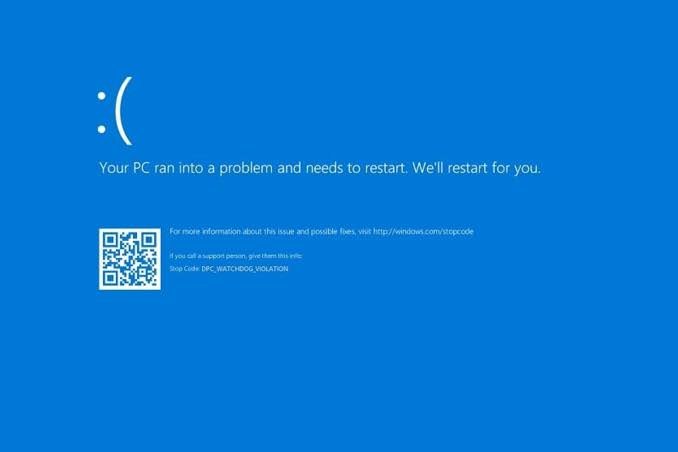

The DPC_WATCHDOG_VIOLATION Blue Screen of Death (BSOD) with stop code 0x00000133 occurs when the Deferred Procedure Call (DPC) watchdog detects an excessively long execution time at an elevated Interrupt Request Level (IRQL). In simpler terms, a system driver or hardware component stopped responding within its allocated time window, forcing Windows to crash to prevent data corruption.
This issue is most frequently caused by outdated or incompatible storage controller drivers (iASTOR.sys), solid-state drive (SSD) firmware bugs, conflicting third-party antivirus software, or misconfigured fast startup settings.
Method 1: Replace the AHCI Controller Driver with the Standard SATA Driver
If your system uses the Intel Rapid Storage Technology (IAStorA.sys / iASTOR.sys) driver, an incompatibility with Windows 10 or 11 power management is the leading cause of this error. Switching to the native Microsoft AHCI driver routinely resolves it.
- Press Win + X and select Device Manager.
- Expand the IDE ATA/ATAPI controllers section.
- Right-click your SATA AHCI Controller (e.g., Intel Chipset SATA AHCI Controller or Standard SATA AHCI Controller) and select Update driver.
- Choose Browse my computer for drivers.
- Select Let me pick from a list of available drivers on my computer.
- Select Standard SATA AHCI Controller from the list and click Next.
- Restart your computer to complete the installation.
Method 2: Update SSD Firmware and Check Drive Health
Outdated firmware on NVMe or SATA SSDs (particularly older Crucial, Samsung, or Corsair drives) can cause read/write request timeouts that trigger DPC Watchdog crashes.
- Identify your drive manufacturer using Device Manager under Disk drives.
- Download the official SSD management utility corresponding to your hardware:
- Samsung: Samsung Magician
- Crucial: Crucial Storage Executive
- Western Digital / SanDisk: WD Dashboard
- Launch the utility and check for pending firmware updates. Install any available updates and reboot.
- Check drive integrity using Command Prompt:
- Press Win + S, type
cmd, right-click Command Prompt, and select Run as administrator. - Run the following command (replace
C:if Windows is installed on another partition):DOSchkdsk C: /f /r - Press
Yto schedule the scan upon the next reboot, then restart your PC.
- Press Win + S, type
Method 3: Disable Fast Startup
Fast Startup uses a hybrid hibernation state to reduce boot times. However, it can prevent hardware drivers from re-initializing correctly, leading to driver timeouts during power state transitions.
- Press Win + R, type
control, and press Enter to open Control Panel. - Set View by to Large icons and click Power Options.
- In the left-hand menu, click Choose what the power buttons do.
- Click Change settings that are currently unavailable.
- Uncheck Turn on fast startup (recommended) under Shutdown settings.
- Click Save changes and restart your system.
Method 4: Scan System Files and Check Dump Logs
If driver updates do not resolve the crash, verify that core system files are intact and inspect the crash dump file.
- Open Command Prompt as Administrator.
- Execute the System File Checker:DOS
sfc /scannow - After completion, run the DISM tool to repair the Windows component store:DOS
DISM /Online /Cleanup-Image /RestoreHealth - To pinpoint the exact driver causing the crash, download the free utility BlueScreenView or WinDbg, load the dump file located at
C:\Windows\Minidump, and locate the module highlighted under Caused By Driver.
Technical Summary & Diagnostic Checklist
| Suspected Cause | Diagnostic Action | Primary Fix |
|---|---|---|
| SATA / AHCI Driver | Crash log references iASTOR.sys or storahci.sys | Switch driver to Standard SATA AHCI Controllervia Device Manager. |
| Outdated SSD Firmware | Drives fail read/write timing tests during heavy load | Install manufacturer software (Magician/Storage Executive) and update firmware. |
| Power State Glitch | BSOD occurs immediately after waking from sleep or booting up | Disable Fast Startup in Power Options. |
| Corrupted Windows Files | Intermittent BSODs without specific hardware changes | Run sfc /scannow and DISM /Online /Cleanup-Image /RestoreHealth. |